What is it?
HubSpot now automatically saves property edits on the CRM index page.
Why does it matter?
This feature streamlines data entry by reducing the number of clicks and saving information automatically, so CRM users work more efficiently and lose as little data as possible.
How does it work?
When users edit properties on the index page, they no longer need to click 'Save'. Instead, they see a 'Saving' status message in the bottom left of the screen, which shows when changes have been saved.
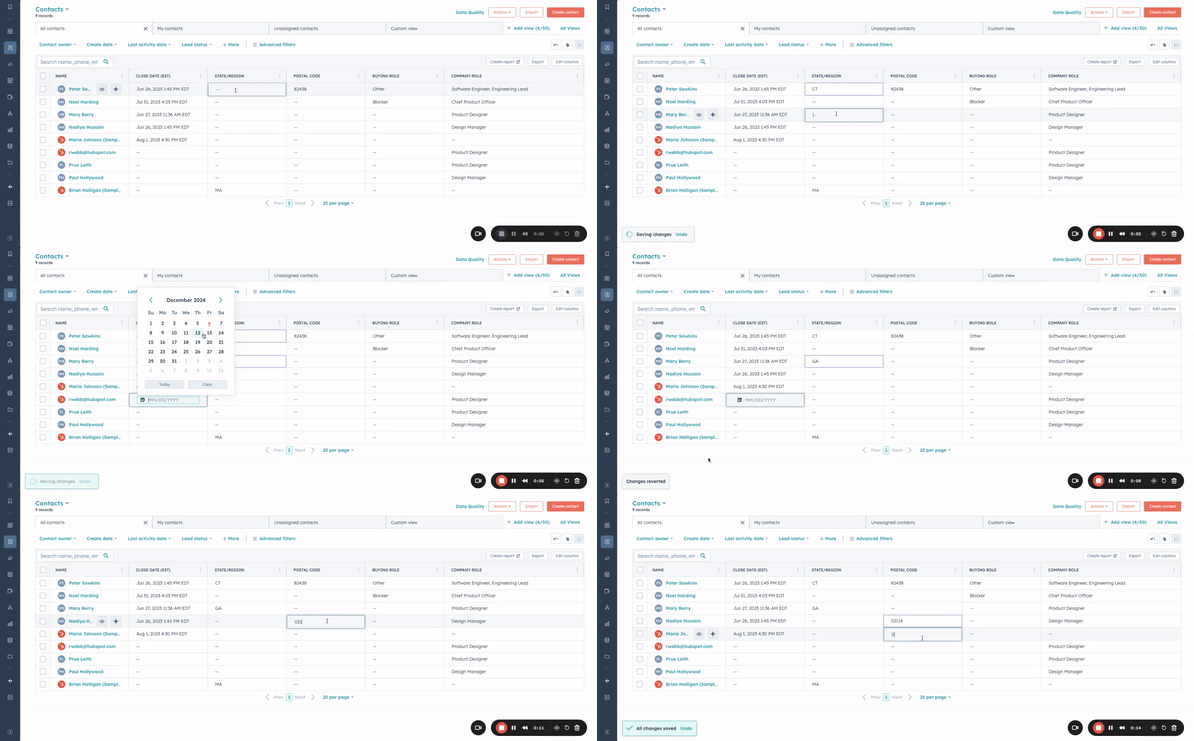
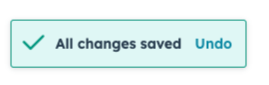
If you want to undo a property edit, you can click 'undo' in the save status element. You can undo your most recent change.
Who gets it?
All Hubs and Editions
Easier and faster list creation
What is it?
HubSpot is introducing updates and new features that make creating lists easier and faster.
Why does it matter?
Today, building a list requires too many upfront decisions. In reality, naming your list, choosing custom properties, and deciding whether the list should be active or dynamic are choices you should make after you've defined your ideal segment.
How does it work?
-
The new 'Create lists' page streamlines your process. You're no longer asked for a name, description, processing type or custom properties upfront. Instead, you can quickly select the right object and even use AI for any standard object to help you pull in the right criteria.
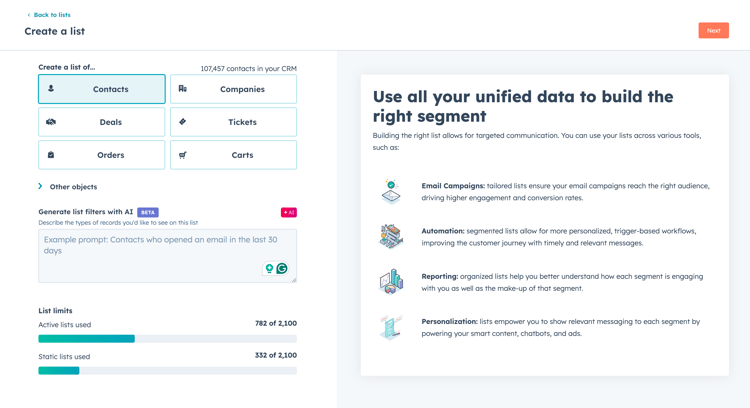
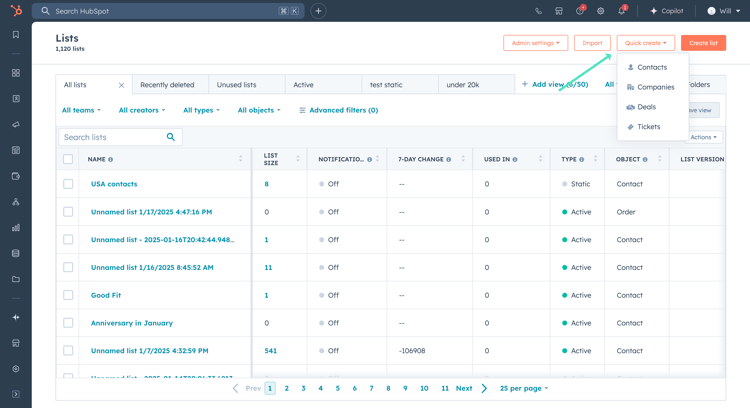
- If you're an active list user, you can now click 'Quick create' to get started without going through the process above every time:
-
Whichever route you take, you'll quickly land on the list creation page, where you can:
- Change your list's name from the default name
- Quickly change the object if you want to segment on a different data source
- Use AI to help you find the right filter
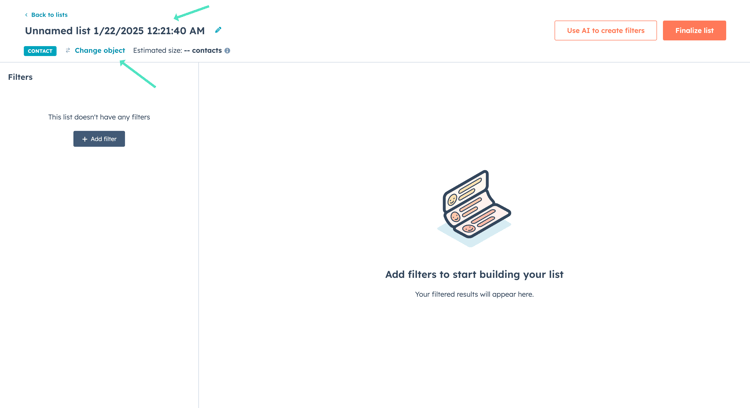
- Choose the processing type
- Add a description and any custom properties that help you organise your lists.
- Setexclusions for lists or contacts you don't want included in this segment
- Set view/editpermissions for this specific list (Enterprise only, beta)
Who gets it?
All hubs and tiers
Helpdesk board layout
What is it?
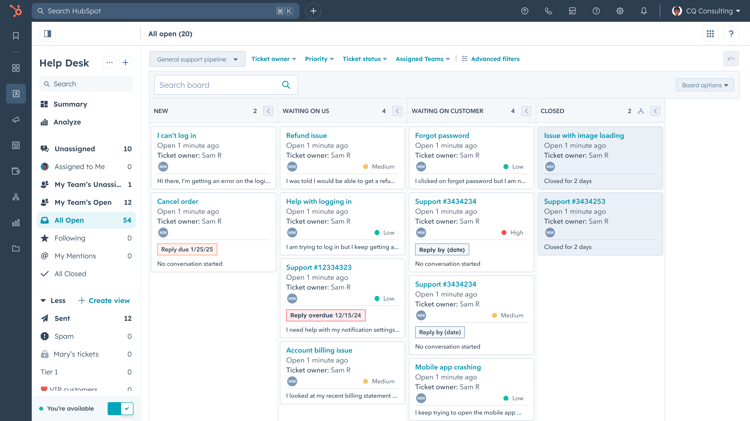
The board is a new layout in helpdesk that gives a visual view of tickets moving through the different pipeline stages. Tickets on the board are organised into columns, with each column corresponding to a specific pipeline stage.
Why does it matter?
The board offers a visual way to manage tickets by organising them into columns that represent the pipeline stages. This visual approach helps teams quickly assess the status of each ticket, identify bottlenecks and prioritise actions effectively.
For managers, the board provides a comprehensive overview of ticket movement, enabling better informed decisions and more efficient allocation of resources. For reps, it highlights tickets that need immediate attention, so they can respond faster.
How does it work?
How do I access the board layout?
- You need a Service seat to access the board layout.
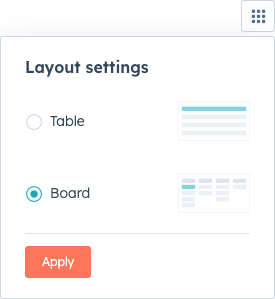
- You can access the board layout via the new layout switcher (see image below):
- Select "Board", press "Apply" and the board becomes your default helpdesk layout. If you leave the helpdesk and return, you'll land directly on the board.
- Select "Board", press "Apply" and the board becomes your default helpdesk layout. If you leave the helpdesk and return, you'll land directly on the board.
How does it work?
- The Helpdesk board works the same way as the Tickets board. You can switch between pipelines and the board respects whichever view you're currently in. For example, if you're in the "Support pipeline" and "Following" view, the board will show tickets you're following in the "Support pipeline".
- Tickets can be dragged and dropped between columns, which automatically updates their pipeline stage.
- Clicking a ticket's name on a board card takes you straight to the conversation about that ticket.
- The search function returns results within the currently selected pipeline.
- Sort and filter preferences are consistent across all layouts, so you can switch seamlessly between board and table layouts without losing your settings.
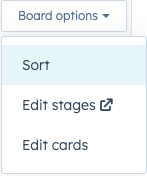
- Cards can be customised via the "Edit cards" option under "Board settings".
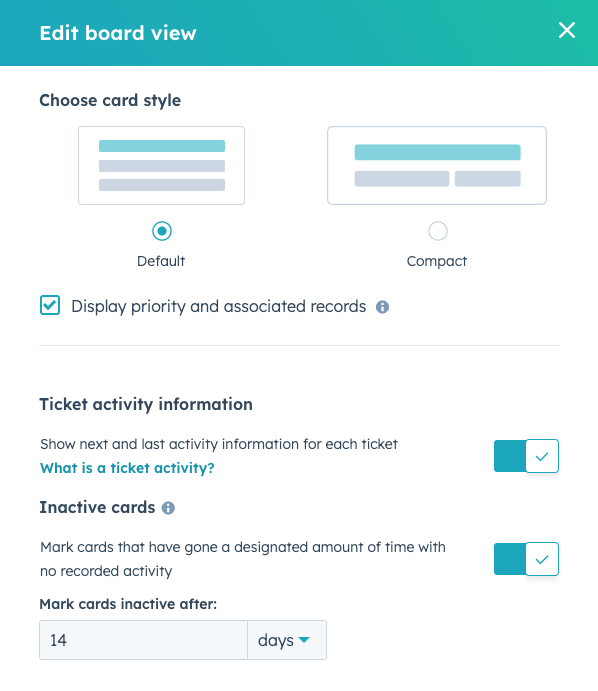
Note on real time:
In views that only show open tickets (for example, "All open"), dragging a ticket to a pipeline stage with a closed status causes the ticket to disappear from the board immediately. This is due to the helpdesk's real-time updates, which automatically reflect changes in ticket status. To keep a tidy workspace, it can help to collapse the closed-status column when working in the open tickets view
Who gets it?
Service Pro and Service Enterprise, Service seat required
View score history directly on index pages
What is it?
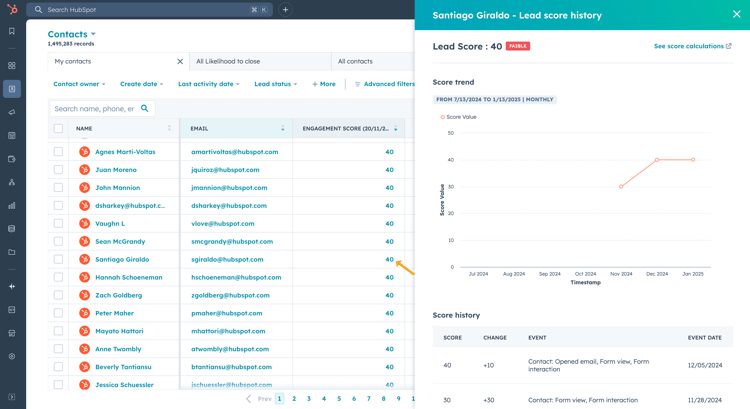
If you have a new scoring property, such as a Health score or Lead score, you can now quickly view a record's score history on the record pages/index pages.
Why does it matter?
Understanding how a score is built up lets you prioritise your leads quickly. Unfortunately, until today, you had to:
- Go to each individual record
- Look for the record's score card
- Open the score history
And repeat this for every individual record.
How does it work?
Now you can open a record's score history from the index page with a single click.
The same applies to your Customer success tab
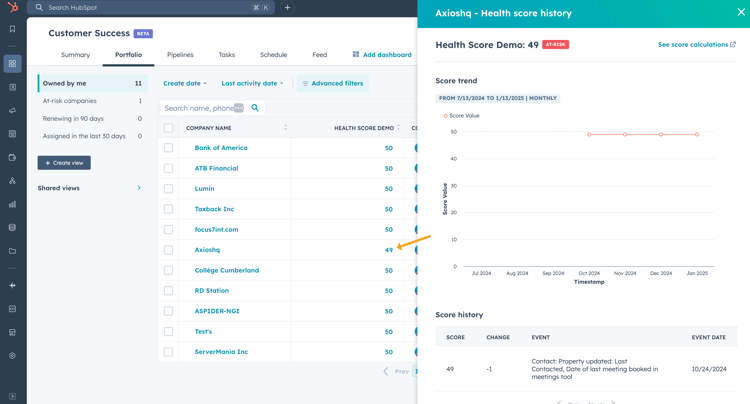
*this feature is not yet available for score threshold properties
Who gets it?
Marketing Pro, Marketing Enterprise, Marketing+ Pro, Marketing+ Enterprise, Service Enterprise
Add calls, emails and meetings to campaigns
What is it?
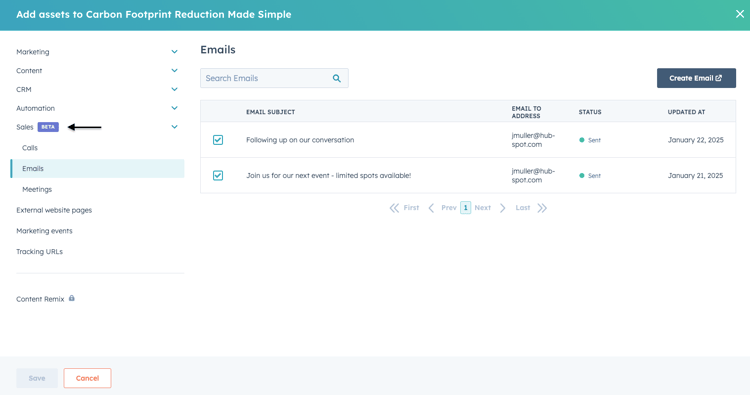
You can now add 3 new asset types to your campaigns:
- Calls
- Emails
- Meetings
Why does it matter?
Calls, emails and meetings are crucial touchpoints in a marketing campaign because they create personal interaction, build trust and guide prospects through the decision-making process.
Adding them to a campaign means every interaction is tracked properly, and you can view everything within a single campaign across all channels.
How does it work?
Adding calls, emails and/or meetings to your campaign
- Navigate to campaigns
- Create a new campaign or select an existing campaign
- On the Campaign details page, navigate to the 'Add assets' window by clicking the 'Add assets' CTA
- Then select the Sales category
- Click Calls, Emails or Meetings
- Select existing assets from the list or create new ones
- Once done, click 'save'
As with other assets, you can also add these assets from within the editors: when creating the email, scheduling the call, or setting up the meeting, simply navigate to 'associated with 1 record' and select or create the campaign from there.
Measuring asset performance
Once your assets have been added to your campaign, you can find the asset in two places on the Campaign details page:
1. Assets tab: Here you can view calls, emails and meeting details, including name, status and notes.
2. Performance tab: This section helps you track your assets' performance and their contribution to 'influenced contacts' and 'revenue' metrics:
- Sales call connected (attended)
- Sales email replied to
- Sales meeting attended
Who gets it?
The campaigns tool is available to Marketing Pro and Marketing Enterprise users.
The respective assets are available to the following users: Sales Starter, Sales Pro, Sales Enterprise, Service Starter, Service Pro, Service Enterprise.
Create permissions for contacts, companies, deals, tickets and custom objects
What is it?
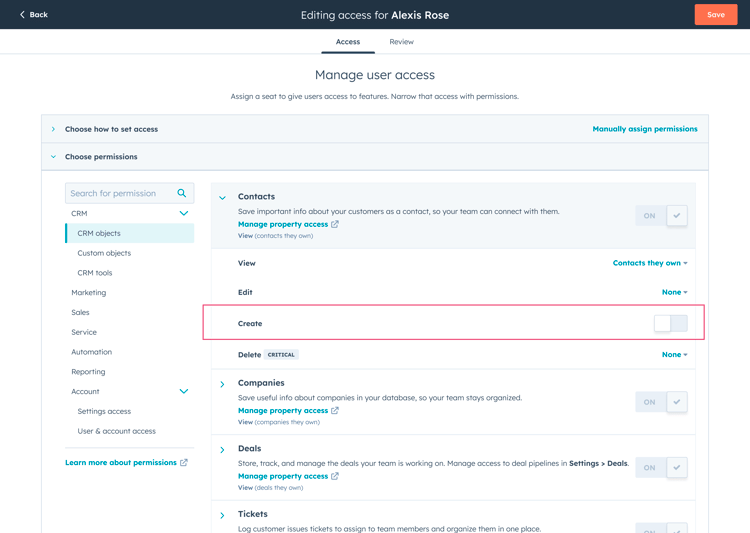
New user-level permissions have been added that let admins determine who can create and/or edit specific object types (Contact, Company, Deal, Ticket and custom objects).
Why does it matter?
Admins can now ensure better data hygiene by separating permissions for editing and creating records. This lets admins allow users to edit contacts, companies, deals, tickets and custom objects without automatically granting rights to create records, addressing customer concerns around data quality and control.
How does it work?
Admins can manage user permissions by navigating to "Users & Teams" to set access levels for creating and editing records such as Contacts, Companies, Deals, Tickets and custom objects. Initially, users with edit permissions will automatically have permissions to create those object types.
Who gets it?
All hubs and editions
View activity summaries on records
What is it?
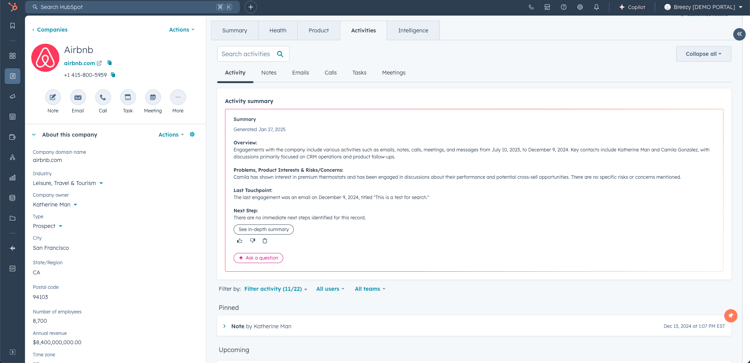
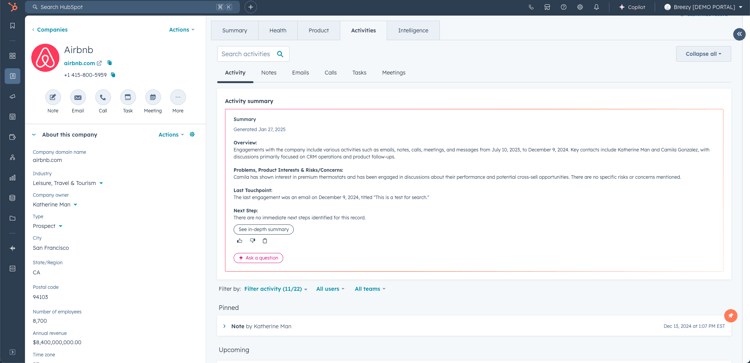
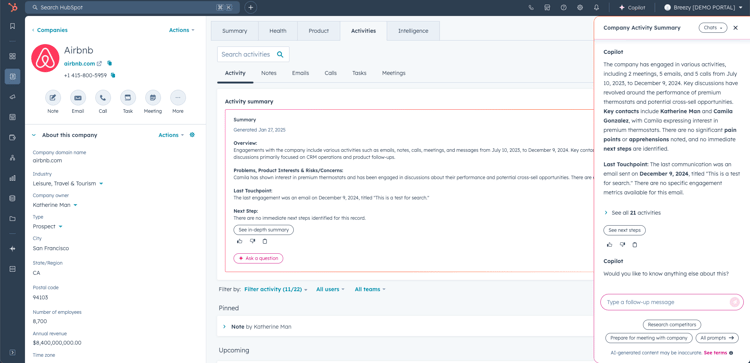
You can now view activity summaries for your company and contact records. This feature provides a general summary of incoming and outgoing activities for marketing, sales and service. This includes activities such as emails, meetings, calls, notes, tasks, website interactions, webinars attended, form submissions and ad interactions.
A summary includes a checklist of topics discussed so far, a customer's pain points, concerns, business goals and growth opportunities, products they've shown interest in, indications of timelines, details on the most recent touchpoint, level of marketing engagement, and next steps.
Why does it matter?
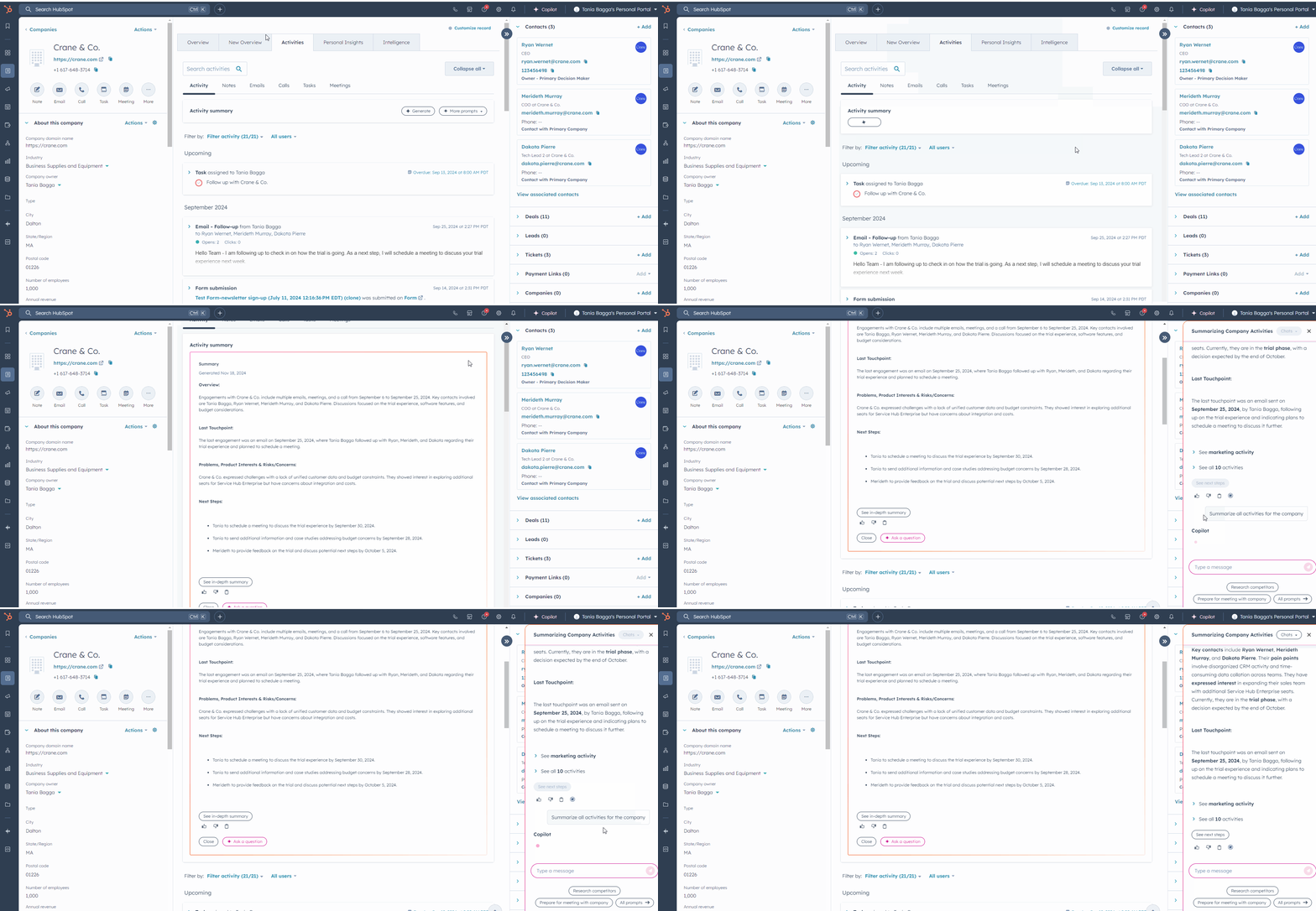
This feature lets users quickly review their interactions with a customer or prospect, saving considerable time compared with scrolling through activities on a timeline. This update helps users work more efficiently and lets new users get up to speed quickly.
How does it work?
Activity summaries appear automatically at the top of the "Activities" tab on record pages for all object types (Contact, Company, Deals, Tickets). There's nothing to set up. If you want to see an expanded summary or ask a question, you can click these buttons to open Copilot.
Who gets it?
Professional Customer Platform, Enterprise Customer Platform, Content Hub Professional, Content Hub Enterprise, Marketing Hub Professional, Marketing Hub Enterprise, Operations Hub Professional, Operations Hub Enterprise, Sales Hub Professional, Sales Hub Enterprise, Service Hub Professional, Service Hub Enterprise
Want to know how HubSpot can help you?