How to build a good HubSpot homepage dashboard?
 Femke Jesterhoudt
Step-by-step plan for building a custom HubSpot homepage for maximum efficiency
For marketing teams, a clear, personalised HubSpot homepage is essential. It gives you direct access to the most important data at all times, such as sales figures, lead generation and campaign results. Building a custom dashboard in HubSpot is simple and offers huge benefits. In this blog, we explain step by step how to build a HubSpot homepage.

Step-by-step guide
Select important data
The first step is to determine which information you and your team need on a daily basis. Think of:
-
- Sales statistics: Such as revenue per month, open deals and the number of closed deals.
- Marketing reports: Data on leads, email campaign results and website traffic.
- Tasks and to-dos: Make sure you have visibility of outstanding tasks, both for you and your team.
- Campaign KPIs: Monitor the performance of ongoing marketing campaigns.
How do you select this data in HubSpot?
-
- Go to the "Reports" tab in your HubSpot account.
- Review your available standard reports and decide which ones matter to you.
- Also consider building custom reports to get specific insights that aren't available by default.
-
Customise the dashboard
Once you know which data matters, it's time to build your dashboard. But how do you make these changes in HubSpot?
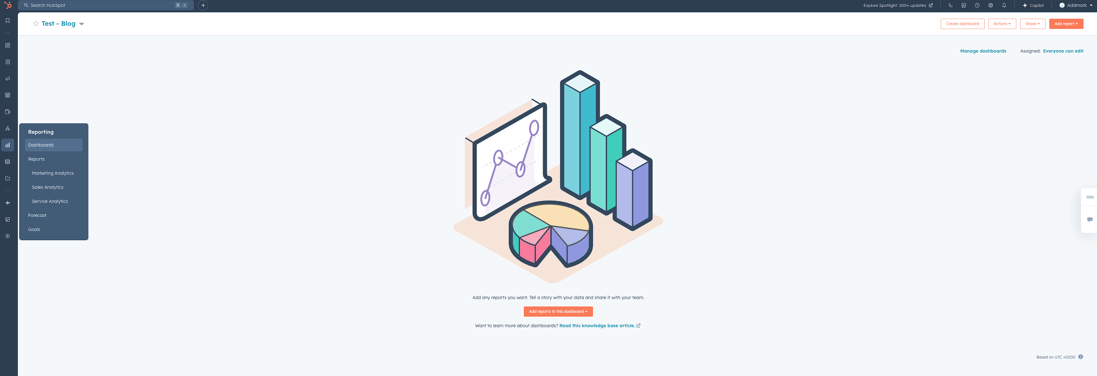
- Go to your HubSpot account and open the "Dashboard" tab.
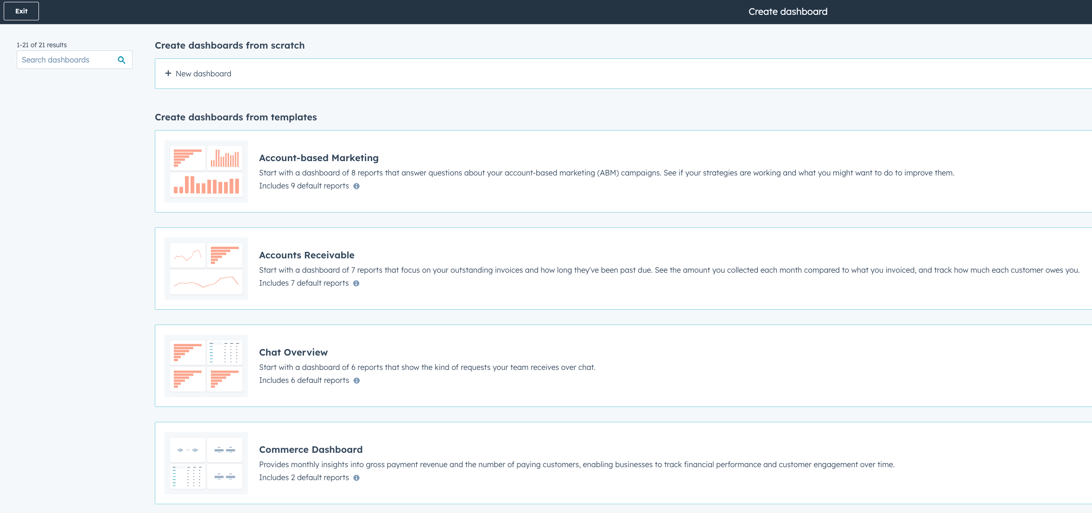
- Click "Create dashboard" or choose an existing dashboard you want to customise.
- Add widgets that show your most important reports, tasks and statistics. You can choose from several types of reports, including:
- Standard reports: HubSpot offers ready-made reports that you can easily add.
- Custom reports: Build your own reports by applying filters to specific datasets. This is useful if you want unique insights.
- External integrations: Use external tools that integrate with HubSpot, such as Google Analytics, to centralise data from different sources in one place.
2. Organise the dashboard
Once the widgets have been added, you need to organise the dashboard. Make sure the most important information is immediately visible when you open your dashboard. But what's the best way to organise the layout in HubSpot?
-
- Click and drag the widgets to the right position to rearrange them.
- Place the most crucial data, such as sales or lead statistics, at the top so it's always in view.
- Use colours or categories to highlight specific sections and improve readability.
3. Dashboard examples
Below are a few examples of dashboards you can put together, including the widgets you can add to optimise your workflow.
Marketing channel performance
Tracking the performance of different marketing channels is essential for optimising your campaigns and identifying the most valuable sources of leads and traffic. With specific widgets in your dashboard, you can easily track which channels deliver the most return and where improvements are needed.
3.1. Contact lifecycle funnel
-
- Widget type
Funnel chart - Why?
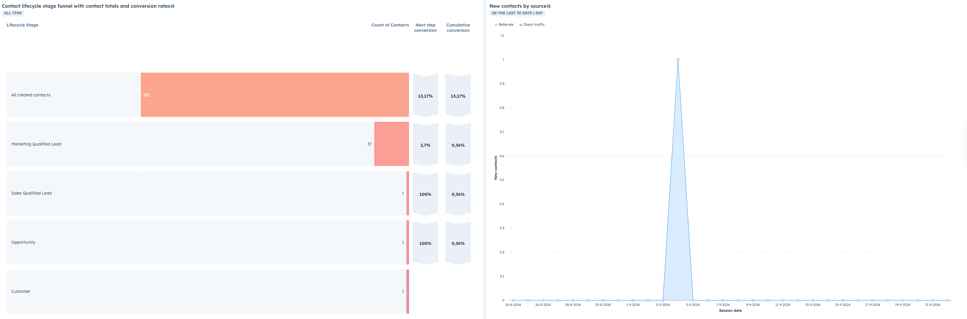
This funnel gives an overview of how many contacts are in each stage of the lifecycle, from "All Created Contacts" to "Customer." This is useful for understanding conversion rates per stage and where optimisation may be needed. - Organisation tip:
Place this at the top of your dashboard so you always have insight into the status of your contact flow.
- Widget type
3.2. New contacts by source
-
- Widget type
Line chart - Why?
The line chart shows how many new contacts have been generated through different sources, such as referrals and direct traffic. This helps you analyse which marketing channels are most effective at attracting new leads. - Organisation tip:
Place this above or next to other lead-related widgets so you can quickly switch between the different sources.
- Widget type
3.3. New website visitors by source
-
- Widget type:
Line chart - Why?
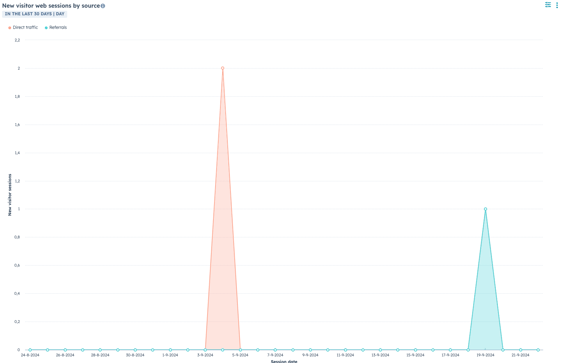
This widget shows how many new visitors visit your website, broken down by source such as direct traffic and referrals. This is essential for seeing which sources generate the most traffic to your website. - Organisation tip:
This can sit next to the widget for new contacts by source, giving you a complete overview of both visitors and generated leads.
- Widget type:
4. Sales channel performance
Tracking the performance of different sales aspects is also essential for optimising your sales strategies and reaching your goals. Below are a few examples for sales channel performance.
1. Deal forecast
-
- Widget type:
Forecast chart - Why?
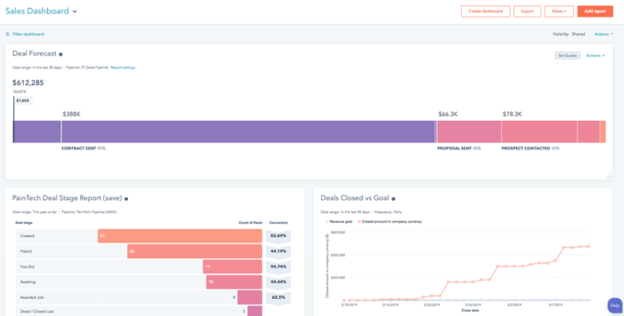
This widget gives an overview of the expected deals for the coming period, based on current opportunities in your pipeline. This helps you anticipate future revenue and set realistic goals. - Organisation tip:
Place this widget at the top of your dashboard for a quick overview of expected revenue.
2. Deal stage
- Widget type:
Funnel chart - Why?
This funnel shows the number of deals in each stage of the sales cycle, from "New Lead" to "Closed Won." This gives insight into where deals stall and where you need to focus your attention. - Organisation tip:
Use different colours to quickly identify the status of deals.
3. Deal closed vs. goal
- Widget type:
Comparison chart - Why?
This widget shows closed deals versus the set goals for a given period. This helps evaluate the sales team's performance and identify any shortfalls. - Organisation tip:
Keep this widget prominent on your dashboard to quickly monitor progress towards your goals.
- Widget type:
5. Account based marketing
Tracking the performance of your customers is smart, so you know what deal status they're in and what can be optimised.
5.1. Ideal customers
-
- Widget type:
List view - Why?
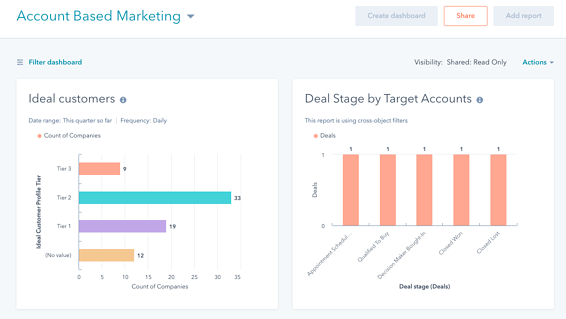
This widget shows a list of your ideal customers, based on predefined criteria such as industry, size and other demographic data. This helps you focus on accounts with the highest potential for conversion. - Organisation tip:
Place this widget in the top section of your dashboard so you always have a clear overview of your most important target accounts.
5.2. Deal status
- Widget type:
Funnel chart - Why?
This funnel gives an overview of deal statuses specifically for your target accounts. It shows what stage of the sales cycle these accounts are in, from "Interested" to "Closed." This helps identify obstacles and optimise your approach. - Organisation tip:
Use a clear layout and colour coding to quickly assess the status of different accounts.
- Widget type:
6. Automate & share
Naturally, you want your dashboard to always be up to date without having to update reports manually. That's why HubSpot offers options for automating and sharing dashboards.
How do you automate and share dashboards in HubSpot?
-
- Automate: Set up automatic updates for your reports. This ensures the data is updated in real time without you having to take any action yourself.
- Share dashboard: Working in a team? Share the dashboard with colleagues so everyone has the same insights. You can do this by clicking "Share" on the dashboard and then giving the right users or teams access. You can even set permissions, such as read-only or edit, depending on what's needed.
7. Make it the default
Once you're happy with the dashboard, you'll want to make sure it's always immediately visible when you open HubSpot. You can do this by setting the dashboard as your default homepage.
How do you make your dashboard the default in HubSpot?
-
- Go to your dashboard settings and choose "Set as default". This will automatically load the dashboard when you log in, making it the first screen you see.
- Go to your dashboard settings and choose "Set as default". This will automatically load the dashboard when you log in, making it the first screen you see.
Why a personalised dashboard matters
A custom-built dashboard in HubSpot doesn't just help you work more efficiently, it also gives you direct insight into the performance of your marketing campaigns, sales activities and other important KPIs. By having everything organised in one place, you reduce the time you need to spend searching for data and can focus on what really matters: optimising your strategies and achieving better results.
HubSpot hacks
By making full use of the power of HubSpot's dashboards, you create a workflow that takes your marketing efforts to the next level. This is especially useful for companies working with multiple teams, as you can easily track the performance of different campaigns and departments. But what else can you use to make it as efficient as possible?
- Use filters: Filter data by team, product or region for an even more targeted overview.
- Dashboards for specific goals: Create multiple dashboards for different purposes, such as a sales dashboard, marketing dashboard or management overview. (see the examples above)
- Regular review: Evaluate and update your dashboard regularly so it always stays relevant and shows the latest data.
Want to know more about the many possibilities of HubSpot? Book a free call with Carel or get in touch with Sander!