What is it?
HubSpot Home is your personal starting point in HubSpot. Whether you are a marketer, sales rep, admin or analyst, it helps you find what you are looking for faster, keep an overview and get the most out of HubSpot.
We know your days are packed: you switch between projects, get requests from colleagues along the way and work on multiple goals at once. That is exactly when it matters that you have direct grip on your priorities. HubSpot Home takes you straight to the right task or data source, so you can confidently take the right next step.
With this update, HubSpot fits even better with the way you work. No unnecessary detours, just more overview, action oriented suggestions and a smart start to your working day.
Why does this matter?
Global Home helps you get to the right data as quickly as possible and take the best next action. It is a page tailored to your role and what you do, so you can navigate HubSpot more efficiently, reach your tasks faster and get more out of HubSpot.
How does it work?
You will find HubSpot Home at the top of the main navigation bar by clicking the 'Home' icon.
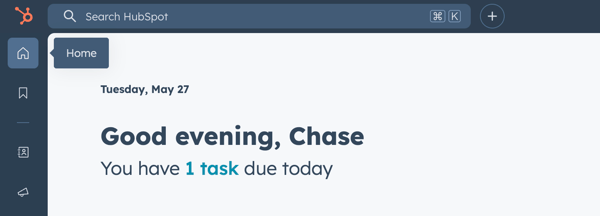
The redesigned home page in HubSpot is built to help you focus on what matters right now. You get dynamic, personal content that keeps your working day clear and efficient.
What you can expect:
-
A clear overview of your tasks, meetings and priorities for today
-
Important notifications or account issues in view, so you miss nothing
-
Shortcuts to the pages you use most often
-
Direct return to your latest work, such as forms or emails
-
See at a glance where colleagues are waiting on you, for an approval, comment or mention
-
Personal learning suggestions via HubSpot Academy to keep developing your skills
Logging in to HubSpot? You automatically land on this home page. Do you have a Sales or Service seat? Then you start in your own workspace, so you are straight in your deals, tickets and tasks, fully tailored to your role.
Who gets it?
All hubs and tiers
What is it?
You can now edit or delete campaign UTM values, giving you more control and more accurate reporting.
Why does this matter?
This new feature ensures accurate and up-to-date campaign UTM tracking, so you can make data driven decisions more easily and more quickly.
By giving you full control over your UTMs, this feature helps maintain clean and reliable tracking, ultimately improving campaign performance and ROI.
How does it work?
-
Editing your campaign UTM value(s)
- Navigate to Campaigns
- Create a new campaign or select an existing one
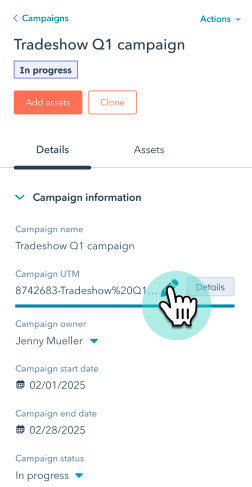
- In the Details panel on the left, find the Campaign UTM property and click the pencil icon to edit it.
- Click Save at the bottom of the screen once you have updated it.
-
Deleting your campaign UTM value(s)
- Navigate to Campaigns
- Create a new campaign or select an existing one
- In the Details panel on the left, find the Campaign UTM property and edit the property inline.
- In the Campaign UTM panel, hover over the UTM value you want to delete. Click Delete and confirm the action.
Important:
- Only secondary campaign UTM values can be deleted. To remove the default campaign UTM value, first update it with a new value and then delete the previous one.
- Deleting a campaign UTM value is permanent and will remove it from your account. Traffic linked to that UTM value will no longer be tracked.
Who gets it?
The Campaigns tool is available for Marketing Hub Professional and Enterprise users.
What is it?
You can now view AI powered insights into ad performance directly from the Manage tab with the new 'Summarise insights' button. Your campaign's performance is analysed and turned into an overview of the results, comparing the performance of different campaigns and giving insight into the possible reasons for performance differences.
Why does this matter?
Advertisers often run multiple campaigns at once and need to quickly see which campaigns are working. Manually going through the data is quite a hassle. This new feature saves you time by summarising key metrics and making recommendations, so you can make better decisions faster.
How does it work?

- In the Manage tab, click the new "Summarise insights" button to open Copilot.
- Copilot does the following:
- Summarises the totals for spend, impressions, clicks, leads, MQLs, etc.
- Compares campaigns based on key performance metrics.
- Finds performance differences based on ad networks, platform costs and how well you are targeting your audience.
Who gets it?
All hubs and tiers
What is it?
A new user interface that lets you test on clients faster, because you can instantly preview more than 100 popular clients, such as Gmail, Outlook and Apple Mail.
Why does this matter?
This new design makes for a smoother and simpler way to test email clients with Litmus, making testing emails in HubSpot easier and faster than ever.
How does it work?
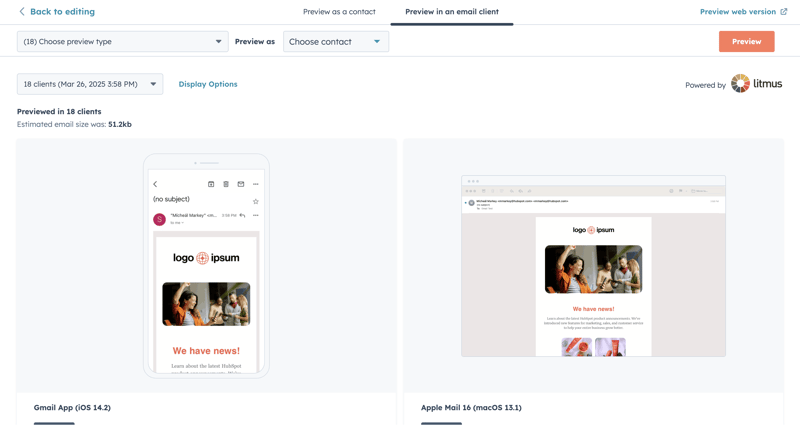
Before sending your marketing email, you can preview how it will look in various email programmes (such as Gmail, Outlook and Apple Mail) and on various devices (desktop, mobile, iPad).
- In your HubSpot account, go to Marketing > Email.
- Click the name of an email you have already drafted.
- Click Preview in the top right of the email editor and then select Preview in an email programme.
- To check how your email looks in specific email programmes, click Choose preview type in the top left of the preview screen.
- Tick the checkbox next to each email client you want to preview.
- Click Preview in the top right. HubSpot creates previews for all the clients you selected.
- The previews are displayed in a grid view, so you can easily look through them.
- Click Expand to get a better look at the preview result.
Who gets it?
Marketing Pro, Marketing Enterprise, Marketing+ Pro
Want to know how HubSpot can help you?