What is it?
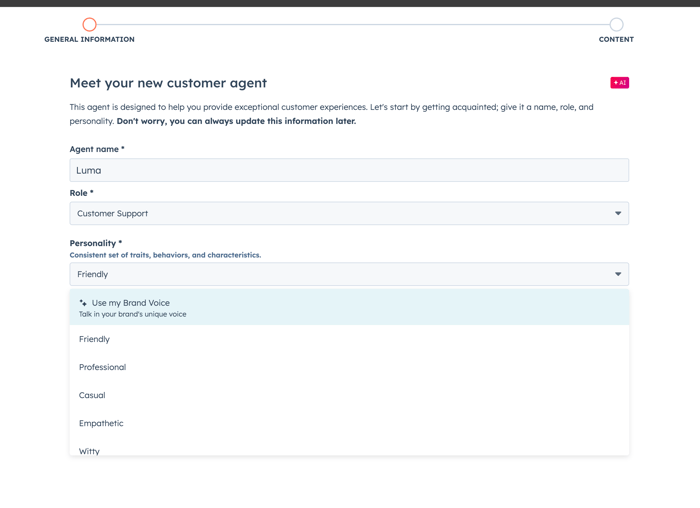
From now on, your AI customer agent aligns better with your brand. Thanks to this update, you match the tone, style and personality of your agent to your existing brand communication in HubSpot. That creates a consistent customer experience, at every point of interaction.
Why does this matter?
The tone of voice of your brand determines how customers experience your company. Until now, the customer agent operated separately from the brand voice you use in your marketing, sales and service, which could create an inconsistent experience.
By now using the same brand voice across all your AI generated content, you create recognition, trust and a uniform look and feel. Customers notice this immediately, from first contact to service conversation.
How does it work?
When setting up your customer agent, you now see a new option in the Personality dropdown menu: ‘Use my brand voice’. Select this option, save your settings and the AI agent automatically adopts your established tone.
Note: this option is only available if you have previously set up your brand voice in HubSpot.
Who gets it?
Professional Customer Platform, Enterprise Customer Platform, Service Pro, Service Enterprise
What is it?
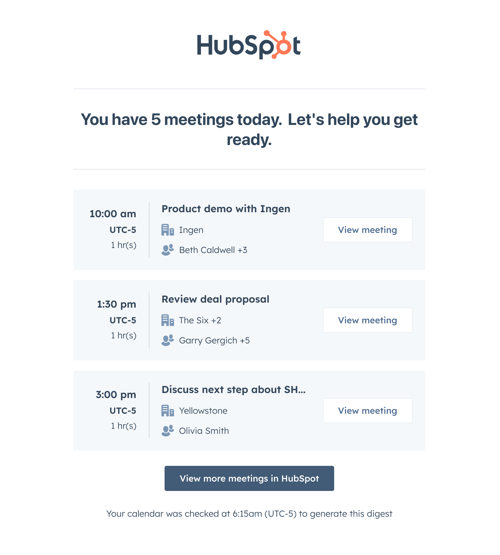
A daily email that highlights your most important sales actions for that day.
Why does this matter?
This feature helps you set priorities for your day by getting a clear list of important actions straight into your inbox. You can:
- Get access to a consolidated view of critical tasks with no setup required
- Take direct action with a single click from the email
- Prepare for upcoming meetings (available in private beta)
How does it work?
Users of the Sales Workspace are automatically subscribed to a daily digest email. The email contains:
1. A list of your most important sales actions for the day
2. Direct links to take action on each item
3. Information about upcoming meetings to help you prepare
Who gets it?
The Sales Workspace is available for customers of HubSpot Sales Hub Professional and Enterprise.
What is it?
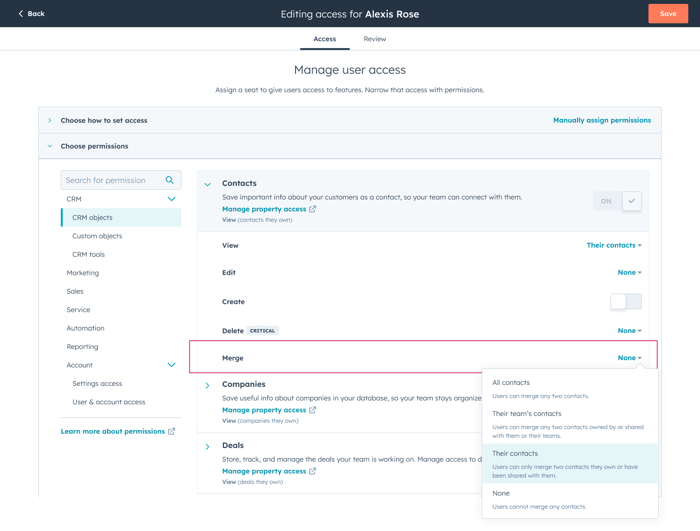
With a new permission for Contacts, Companies, Deals, Tickets and Custom objects, admins can determine whether a user can merge each specific object type, independent of their permission to edit that object.
** Note: changes to custom objects and create and merge permissions are not shown in the permissions history, but we are working on adding this change.
Why does this matter?
Currently, any user who has permission to edit an object, such as a Contact, Company, Deal, Ticket or Custom object, can merge records for that object type. This has raised concerns among HubSpot customers about data hygiene. They need to allow their users to edit records to do their job, but that also forces them to allow those users to merge records.
How does it work?
Users who can change permissions for other users need to navigate to Users and Teams, where they can edit user permissions to determine which access levels for merging records for Contacts, Companies, Deals, Tickets and Custom objects the user should have (e.g. all contacts, their contacts, their team’s contacts, none).
Initially, we will give every user the same merge permission by default for each object type as their permission to edit that object type.
Who gets it?
All hubs and tiers
What is it?
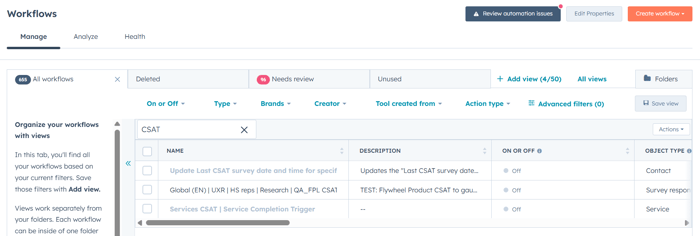
You can now find workflows more easily in HubSpot: descriptions are now also included in the search results on the workflows page. This helps you find what you are looking for faster, even in a portal with hundreds of workflows.
Why does this matter?
Workflow descriptions often contain crucial information about what an automation does and why. Think of exceptions, triggers or details that are not always clear from the name alone.
Until now, you could only search by workflow name, which was inconvenient if you wanted to quickly find a specific piece of follow up logic, for example. This was especially frustrating in larger portals.
This update makes it much easier to search with precision: by name and by content.
How does it work?
Go to the overview page of your workflows and enter a keyword in the search bar. HubSpot then shows all workflows that contain that word, both in the name and in the description.
Who gets it?
Professional Customer Platform, Enterprise Customer Platform, Marketing Pro, Marketing Enterprise, Marketing+ Pro, Marketing+ Enterprise, Ops Pro, Ops Enterprise, Sales Pro, Sales Enterprise, Service Pro, Service Enterprise, Smart CRM Professional, Smart CRM Enterprise
What is it?
New improvements to workflow actions for sending Slack notifications and creating Slack channels are now available in the Slack app for HubSpot.
With the Send Slack notification workflow action, you can now:
- Add actions to the Slack notification, so users can respond directly from Slack to a specific event.
- Select users you want to mention in the notification.
With the Create Slack channel workflow action, you can now:
- Select specific users to automatically add to the channel.
- Select the types of activity updates that are sent to the channel.
- Set a description for the channel.
- Use the workflow action on ticket based workflows.
Why does this matter?
Collaborate more efficiently with your teammates, right where the conversations happen. Turn informative Slack notifications into opportunities for direct action and teamwork. Set up automatic notifications that let you get straight to work, for example creating tasks or updating records, without leaving Slack. Automatically tag colleagues in notifications, so the right people see important updates immediately. This results in fewer missed messages and less chasing people down.
In addition, automatically creating channels with the right people and information saves time and improves collaboration. Set up new Slack channels for specific projects or issues, with the right team members already included and the important information coming in from the start. This workflow action also works for ticket based workflows, so everyone is aligned to resolve issues quickly and the chances of closing deals increase.
How does it work?
Improvements to Slack notifications:
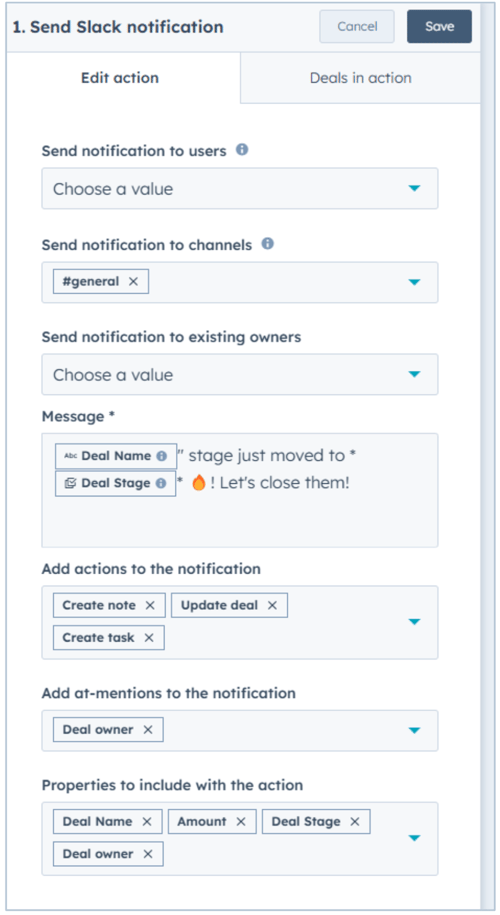
When you set up a workflow in HubSpot to send a Slack notification, you now see the options 'Add actions to the notification' and 'Add @ mentions to the notification'.
- To select 'Add action buttons directly to notifications', choose which actions you want to make available, such as creating tasks, adding notes, logging activities, updating properties.
- To select 'Add @mentions to the notification', choose the team members you want to @mention.
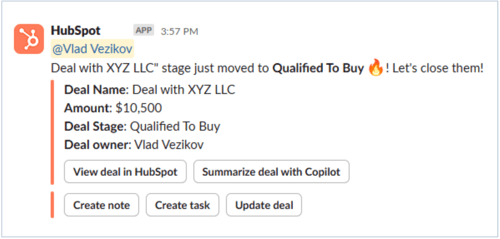
When the notification arrives in Slack, you see buttons to carry out the associated actions and to tag the user you selected to mention. If you click an action button, you can carry out the action directly from Slack.
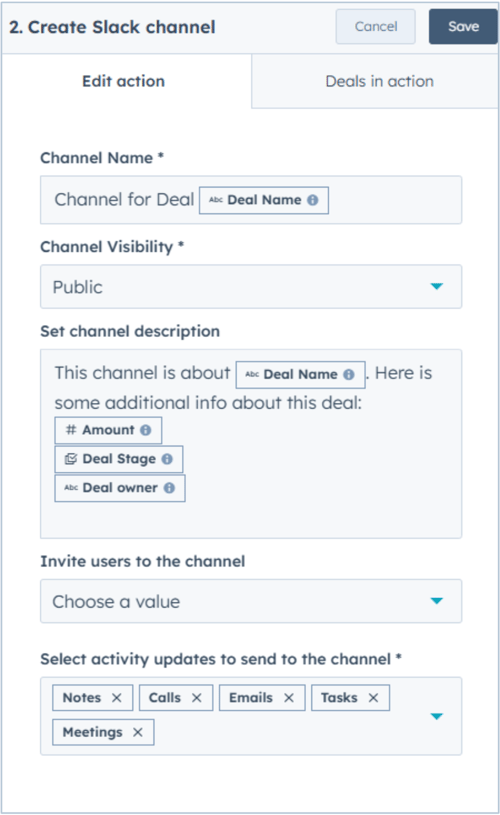
Improvements to creating Slack channels:
- Automatically add certain team members to new channels.
- Choose which activity updates you want to send to the channel.
- Set channel descriptions directly from the workflow.
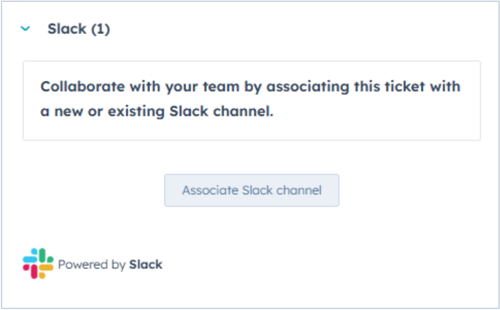
You now also find this workflow action on ticket based workflows, so you can, for example, handle high priority tickets that need their own channel for joint ticket resolution. The corresponding card on the right hand side is now also available on ticket records, so you can manually create links to a new or existing Slack channel.
Who gets it?
All customers with the Slack app for HubSpot installed who have access to workflows (requires Marketing Hub, Sales Hub, Service Hub, Operations Hub or Commerce Hub Professional or Enterprise).
What is it?
The history of an email conversation is now visible and editable when you compose a reply in Helpdesk or Inbox.
Why does this matter?
When you forward an ongoing conversation to a colleague, you may want to leave out irrelevant or sensitive information so the thread is easier to follow for teammates. You may also prefer to answer customer questions in line with the previous reply in the conversation.
How does it work?
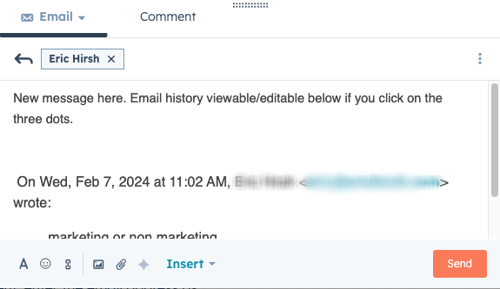
When you write a reply to an existing conversation in Helpdesk or Inbox, click the three dot menu to expand the email history and make changes where needed.
Similar to the experience of the Gmail desktop email client, when you click the three dot menu:
- the email history remains visible
- the three dot menu disappears (for example, you cannot hide the history again)
although you can use your browser to undo the Show history action
- you can then adjust the history of your email and your new message as you see fit.
- when you send your message, the email signature is shown below the history of your messages.
Not expanded: 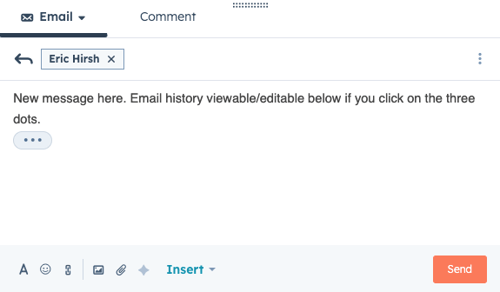
Expanded:
Who gets it?
All customers with the Slack app for HubSpot installed who have access to workflows (requires Marketing Hub, Sales Hub, Service Hub, Operations Hub or Commerce Hub Professional or Enterprise).
Want to know how HubSpot can help you?