The new HubSpot updates for July 2025

Carsten huiskamp Carsten huiskamp
1 Jul 2026 - 15 min leestijd
  • Home
  • Nieuws
  • The new HubSpot updates for July 2025

New product updates from HubSpot

Work smarter with AI, clearer CRM boards and better integrations

In July, HubSpot is once again launching smart features that make your work easier and more efficient. From taking notes for in-person meetings on your iPhone to improved gibberish detection in forms. In this blog, you can read what is new and how you can benefit from it straight away.

Updates in this blog:

notulist-voor-vergaderingen-ios

Notetaker for in-person meetings (iOS only)

What is it?
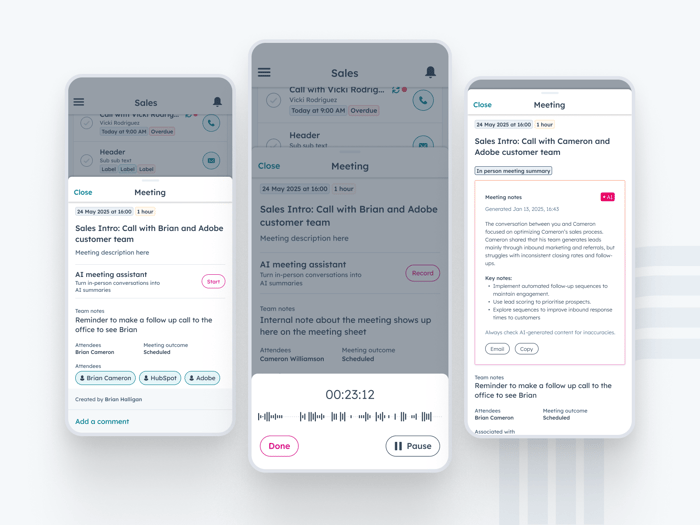
The AI notetaker for in-person meetings brings the power of HubSpot AI to face-to-face sales conversations. Reps can now use the HubSpot mobile app to turn real-time voice recordings into transcripts, which automatically produce meeting summaries and email them directly to all participants. To reduce privacy concerns, meetings are automatically deleted once the summary is complete. This means there is no more manual admin work after an in-person meeting.

Why does it matter?
For reps in the field, in-person meetings are the norm, and although these interactions are crucial for building and closing deals, they often lack the digital trail that online meetings provide. Reps struggle to capture notes and manage follow-up actions, especially when meetings are informal or spontaneous. This new feature bridges that gap, letting reps focus on the conversation while HubSpot AI handles the heavy admin work after the meeting.

How does it work?
From the mobile app, reps can (with permission) start voice recordings. AI processes the content to create summaries. Once the summary is created, users can email it to all participants or copy it. No recordings are stored, only the transcript summary is kept, which helps reduce privacy concerns.

Access points include pages with scheduled meetings and calendar items marked as in-person meetings without online links, as well as created Log Activity Meetings. Users can also view these in-person AI summaries in the desktop version of HubSpot. Once complete, an AI meeting summary notification is sent to reps, so they can click straight through to the summary.

The AI notetaker for in-person meetings uses Google Speech-to-Text functionality to create transcripts. By taking part in this beta, you acknowledge that Google LLC processes the recorded data.

Who gets it?
This feature is available in private beta for users with a Sales Hub Professional or Enterprise seat on iOS. Make sure your mobile app is updated to the latest version to access this new feature.

Sync Microsoft Teams meeting recordings and transcripts to HubSpot meetings

What is it?
You can now use the Microsoft Teams integration to sync your organisation's Microsoft Teams meeting data with HubSpot.

Here is what that gives you:

  • Automatic sync of Microsoft Teams generated meeting recordings and transcripts to HubSpot for playback and archiving purposes.

  • Sync attendee data with contact records and create new contacts for non-CRM attendees.

  • Access a full list of a team's meetings in the calls index and filter by object properties.

  • Quickly preview calls on associated records.

You can also use conversation intelligence with your Microsoft Teams meetings, enabling further analysis of the meeting, such as viewing tracked terms, viewing AI-generated call summaries, adding recordings to coaching playlists, viewing call statistics, adding inline comments to transcripts, and much more.

Why does that matter?

This integration bridges an important gap between your Microsoft Teams meetings and your HubSpot data. By bringing your meeting information together in one place, you eliminate data silos and ensure that no customer interaction goes unnoticed. Now your sales and service teams gain more insight into conversations with customers, giving them the context and insights needed to sell more effectively and build stronger customer relationships.

Find reports you are not using

What is it?

A new ‘Unused reports’ tab has been added to your list of reports. On this tab you will see reports that have not been viewed for 6 months or longer.

Why does it matter?

  • Tidy up your reports: get rid of reports you do not need.

  • Work faster: focus on the reports you actually use.

  • Keep it organised: make sure everyone only sees the reports that are genuinely useful.

  • Keep your data organised: find and delete old reports in no time.


How does it work?

  1. Go to your list of reports.

  2. Click the ‘Unused reports’ tab.

  3. View the list of reports that have not been used yet.

  4. You can then delete the reports you do not need.


Improved AI detection of gibberish for form submissions

What is it?

HubSpot's AI detection now identifies incoming form submissions containing gibberish in all text fields, not just the first name, last name and message properties. This provides more comprehensive spam filtering.

Why does this matter?

Spam form submissions are a major frustration for marketers. A common form of spam is meaningless junk data entered into form fields, which clutters CRM data and creates unnecessary overhead for marketing teams.

With this update, HubSpot's AI gibberish detection helps keep your CRM clean by recognising and filtering out gibberish in all text fields in form submissions. 

How does it work?

  • If a form contains gibberish in any text field, it is flagged as spam and moved to the Spam submissions tool.

  • You can track the number of spam submissions for each form via the "Spam submissions" field.

 

formulier-spamdetectie-1


  • If you click the number of spam submissions, you land in the Spam submissions tool, where these submissions are flagged with the Spam type: "Gibberish".

  • From the spam messages side panel, you can view flagged items and immediately delete them or allow them into your CRM.


formulier-spamdetectie-2


  • If no action is taken, spam submissions are automatically deleted after 90 days.

Recommended templates for dashboards and reports

What is it?

Smart template recommendations have been added to two key parts of HubSpot's reporting feature:

  • The Dashboard Template Library

  • The Report Creation Flow

These recommendations help you find the most relevant dashboards and reports faster by suggesting templates based on your data and goals.

Why does it matter?

Building useful dashboards and reports can take a lot of time, especially if you do not know where to start. Users often face a blank canvas or struggle to find the right templates among all the options.

This feature solves that by showing the most relevant templates for your business context, making it easier to build impactful analytics tools without starting from scratch or searching through the whole library.

How does it work?

  • In the Dashboard Template Library: As you browse templates, HubSpot now highlights recommended dashboards based on your data settings, usage patterns and key objects (such as deals, contacts or tickets). These suggestions let you quickly build dashboards tailored to your needs.

  • In the Report Creation Flow: When you start creating a report, the system offers report templates that match the object and goal you have selected, whether that is tracking pipeline performance, marketing attribution or customer service metrics.

These recommendations are compiled dynamically and change as you use them, making it easier to create meaningful insights with less guesswork.

Improved board view for contacts and companies

What is it?

With this update, you get both:

  1. The option to view your contact and company records in a board view, and

  2. A refreshed board experience for all objects with a board view, including deals and tickets

Here is what you will find:

  • Board view for contacts and companies: View your records sorted by lifecycle stage for a real-time, actionable overview.

  • Faster scanning: Enjoy a streamlined board and card design for quick prioritisation.

  • Personalised views: Add up to 2 extra properties and rearrange them as you like (applies per user)

  • Quick actions:Do what you need to do straight from the board cards without leaving the board.


Why does this matter?

The new contact and company board views give you a clear picture of the journey your customers go through, so you can:

  • Manage relationships proactively

  • Spot opportunities

  • Make data-driven decisions

The improved experience boosts user productivity thanks to a clearer, more efficient and personalised board view. Users can scan faster, prioritise better and customise their own view with 2 extra properties. Admins can now edit card settings directly on the board, so they no longer need to navigate to a separate settings page, saving time.

How does it work?

To open the new board view for Contacts and/or Companies, go to your object index page:

  • CRM and Contacts

  • CRM and Companies

Click the board icon in the top left.

Customising the board experience:

  • Go to your CRM board (left-hand menu, select a CRM object)

  • Click 'Board options' (top right) or hover over a card and use the dropdown (top right)

    • Admins: choose Edit card (for all users) or Edit cards (for your view)

    • Users: Choose Edit cards (for your view)

  • Adjusting card selections:

    • Properties: Admins (select up to 4), Users (add up to 2 extra, reorder)

    • Priority: Turn colour-coded tags and priority points on or off.

    • Associations: Adjust displayed associations

    • Activities: Adjust displayed activities